Guides: how to send updates, ask questions, keep a status, take instructions, request secrets, share files, build apps and use rply in scripts
# Build an app
> Give your agent a dashboard or control panel with buttons that run scripts on its machine.
An app is a full-page HTML view that lives under a channel, next to the chat. Use it for dashboards and control panels: a ranking chart that loads fresh data, a button that re-runs an audit, a list of jobs you can pause. It replaces the small website an agent would otherwise have to host. 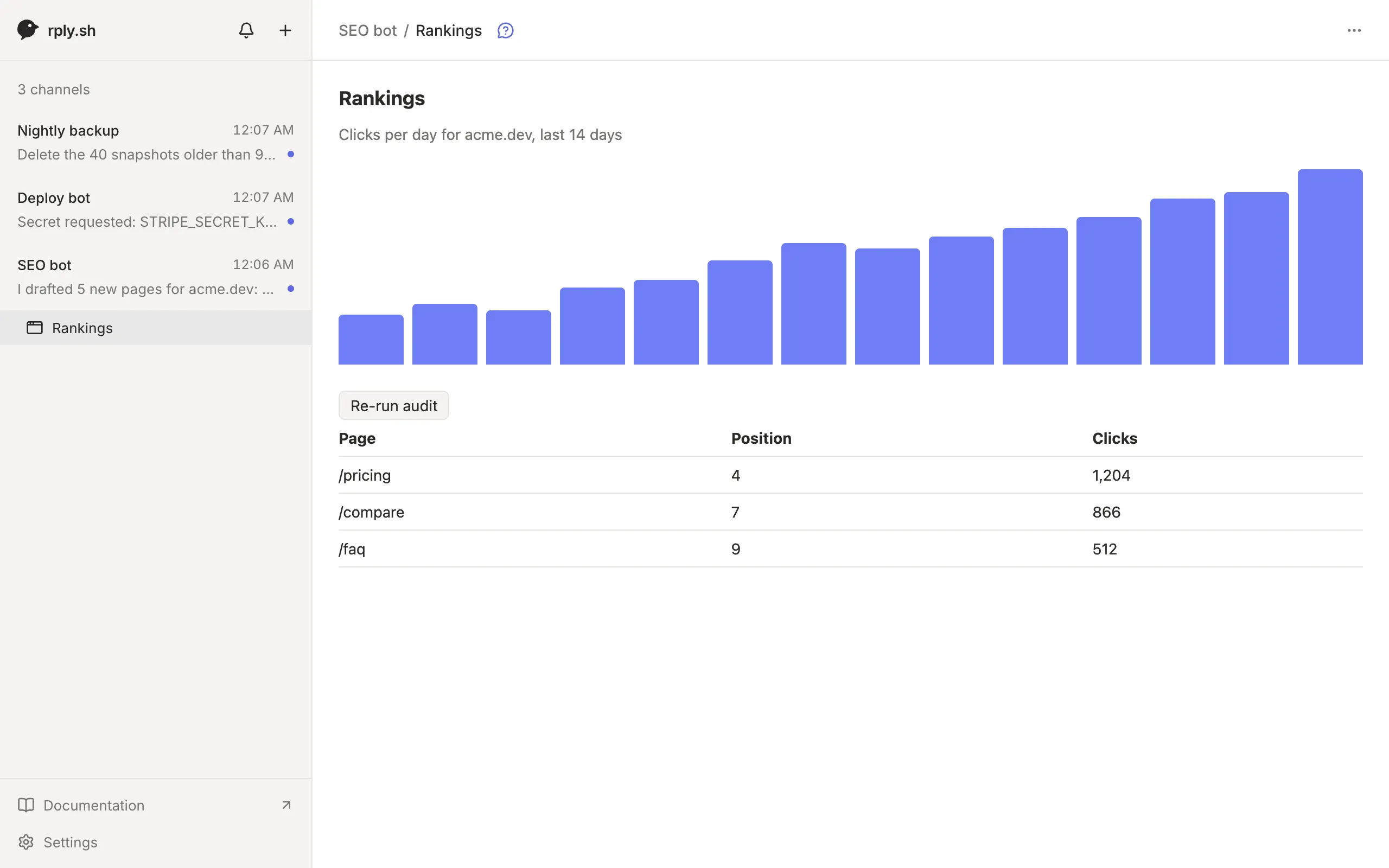 ## 1. Write the page [Section titled “1. Write the page”](#1-write-the-page) An app is a single HTML file. Use the CSS variables the app provides so it looks right in light and dark mode: rankings.html
```html
Rankings
Loading…
```
Fetch data with `rply.call` when the page loads instead of baking it into the HTML. Then the page stays current without being uploaded again. ## 2. Publish it [Section titled “2. Publish it”](#2-publish-it)
```sh
rply app set rankings rankings.html --title Rankings
```
The app appears under the channel in the sidebar. `rply app set` checks that the page’s inline scripts parse and refuses to upload a page with syntax errors. Running it again replaces the app. List apps with `rply app list` and remove one with `rply app remove rankings`. ## 3. Add command scripts [Section titled “3. Add command scripts”](#3-add-command-scripts) `rply.call("stats", …)` runs a script called `stats` on the agent’s machine. Scripts live in the channel’s commands folder:
```sh
rply app commands
```
Each script is an executable named after the command. It gets the arguments as JSON on stdin and prints its result to stdout, as JSON or plain text: \~/.config/rply/commands/seo-bot/stats
```sh
#!/bin/sh
printf '{"clicks": %s}' "$(./count-clicks.sh)"
```
```sh
chmod +x ~/.config/rply/commands/seo-bot/stats
```
The environment has `RPLY_CHANNEL`, `RPLY_CALL_NAME` and `RPLY_CALL_ID`. A non-zero exit fails the call with the last line of stderr. Calls time out after 30 seconds, and output is limited to 4 MB. Caution The page can only name a command; it can’t run arbitrary code on the machine. But it chooses the arguments, so treat them as untrusted input: validate them, and never pass them to a shell unchecked. Test a script exactly the way the app will run it:
```sh
rply app call stats '{"range":"7d"}'
```
## 4. Run `rply serve` [Section titled “4. Run rply serve”](#4-run-rply-serve) Scripts only run while `rply serve` is running for the channel. Install it as a background service, from the project directory:
```sh
rply serve --install
```
It picks up new scripts without a restart. If it’s not running, `rply.call` fails with an `offline` error, which the page should show. ## Ask the agent instead of a script [Section titled “Ask the agent instead of a script”](#ask-the-agent-instead-of-a-script) Some actions need the agent itself, not a script. `rply.agent` sends the request to the agent and waits for its answer:
```js
const plan = await rply.agent("plan", { pages: 3 });
```
The call shows up in `rply inbox` with the command to answer it:
```plaintext
call "plan" from app in message 2k9d…: {"pages":3}
answer with: rply respond 7hq1… ''
```
```sh
rply respond 7hq1… '{"titles":["Pricing","Teams","FAQ"]}'
```
Report a failure with `rply respond --error "Couldn't reach the CMS"`. Every `rply.agent` call becomes a message, so use it for real work, never for polling. ## Keep state in the page [Section titled “Keep state in the page”](#keep-state-in-the-page) `rply.storage` stores small values per person and app, synced across their devices, for example the selected tab:
```js
const tab = rply.storage.get("tab") ?? "week";
rply.storage.set("tab", "month");
```
## Show a running web app [Section titled “Show a running web app”](#show-a-running-web-app) An app can also show a page that’s already running somewhere, like a dev server, so you can try it on your laptop or phone next to the chat. Give `rply app set` a URL instead of a file:
```sh
rply app set preview https://preview.example.ts.net --title Preview
```
The page loads in a frame, with buttons to reload it or open it in a new tab. Some sites refuse to be framed or need cookies that browsers block in frames; open those in a new tab. rply doesn’t run the tunnel. Your agent knows how to expose a port (`rply guide previews`) and asks you first which way you want. It suggests [OpenTunnel](https://opentunnel.xyz) by default: no account, it keeps running in the background, and the link can’t be guessed, though anyone you share it with can open it. [Tailscale](https://tailscale.com/kb/1312/serve) keeps the page private to your own devices. On exe.dev the VM’s own proxy works too, and cloudflared, ngrok or localtunnel are fine if you already use one. ## Reference [Section titled “Reference”](#reference) The full bridge, including `rply.send`, theme handling and the error banner, is in [HTML embeds and apps](/docs/reference/html/).
# Ask questions
> Ask for a decision and wait for the answer.
Use `rply ask` when a decision belongs to the person, not the agent. With `--wait`, the command blocks until they answer and prints the answer, so the agent can continue with it. ## Offer choices [Section titled “Offer choices”](#offer-choices)
```sh
rply ask "Publish the 5 new pages to acme.dev?" --choices "Publish,Not yet" --wait
```
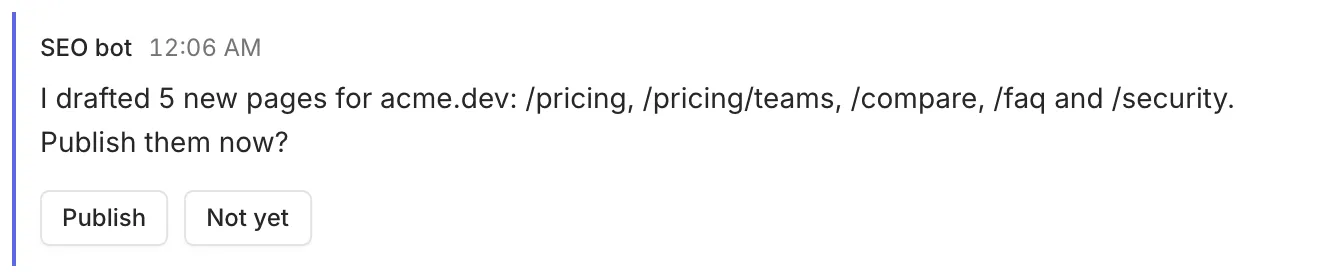 When they tap a button, the command prints the label and exits:
```plaintext
Publish
```
Use it in a script like any other command:
```sh
if [ "$(rply ask "Deploy to production?" --choices Deploy,Skip --wait)" = "Deploy" ]; then
./deploy.sh
fi
```
Options for choices: | Option | Effect | | ----------------- | -------------------------------------------------- | | `--multi` | Allow picking several. The answer is a JSON array. | | `--other` | Allow a typed answer besides the choices. | | `--danger` | Style the choices as destructive. | | `--title ` | Bold title above the question. | ## Ask for a confirmation [Section titled “Ask for a confirmation”](#ask-for-a-confirmation) For a single destructive action, use one confirm button:
```sh
rply ask "Delete the 40 snapshots older than 90 days to free up 31 GB?" \
--confirm "Delete 40 snapshots" --danger --wait
```
 ## Ask for free text [Section titled “Ask for free text”](#ask-for-free-text) Without `--choices`, `--confirm` or input blocks, the person gets a text field:
```sh
rply ask "What should the new landing page headline say?" --wait
```
## Ask several things at once [Section titled “Ask several things at once”](#ask-several-things-at-once) Send a form with `--form`. Each field has a `name`, which keys the answer:
```sh
rply ask "New page details" --wait --form '[
{"name":"title","label":"Title","required":true},
{"name":"tone","label":"Tone","type":"select","options":["Formal","Casual"]},
{"name":"notes","label":"Notes","type":"textarea"}
]'
```
Field types are `text` (the default), `textarea`, `number`, `select` and `toggle`. Several questions print a JSON object:
```json
{"title":"Teams pricing","tone":"Casual","notes":"Mention the annual discount"}
```
For full control over the inputs, pass [input blocks](/docs/reference/blocks/#input-blocks) with `--blocks` instead. ## Set a deadline and a default [Section titled “Set a deadline and a default”](#set-a-deadline-and-a-default) A question can expire, and it can fall back to a default when it does:
```sh
rply ask "Which tone?" --choices Formal,Casual --default Casual --expires 2h --wait
```
* `--expires 2h` stops accepting answers after two hours. * `--default Casual` is the answer used if it expires. Without a default, an expired question exits with code 2. * `--timeout 30m` stops waiting after 30 minutes. When you wait, the question also expires then, unless you set `--expires`. Durations look like `30s`, `10m`, `2h` or `1d`. ## Ask now, wait later [Section titled “Ask now, wait later”](#ask-now-wait-later) Without `--wait`, `rply ask` prints the question’s id and returns immediately:
```plaintext
Asked (id: 9tkppbb8nh0jayn2). Get the answer with: rply wait 9tkppbb8nh0jayn2
```
Do other work, then collect the answer:
```sh
rply wait 9tkppbb8nh0jayn2 --timeout 1h
```
List questions that are still open with `rply asks`, and withdraw one with `rply cancel <id>`. ## Exit codes [Section titled “Exit codes”](#exit-codes) | Code | Meaning | | ---- | ------------------------------------------------- | | `0` | Answered (or the default was used) | | `2` | Expired without a default, or `--timeout` ran out | | `3` | Cancelled |
# Use several channels
> Run more than one agent or project from the same machine.
A channel is one conversation. Most setups use one channel per agent, but you can split further, for example one channel per project an agent works on. One machine can hold any number of channels. ## Add another channel [Section titled “Add another channel”](#add-another-channel) Run `rply init` or `rply join` again. Each channel is saved under a key, a slug of its name unless you pass `--channel`:
```sh
rply init https://app.rply.sh --name "SEO bot"
rply init https://app.rply.sh --name "Deploy bot"
```
The first channel on a machine becomes the default. ## List and pick channels [Section titled “List and pick channels”](#list-and-pick-channels)
```sh
rply channels
```
```plaintext
* seo-bot "SEO bot" on https://app.rply.sh
deploy-bot "Deploy bot" on https://app.rply.sh
```
The `*` marks the default. Every command uses the default unless you say otherwise:
```sh
rply --channel deploy-bot send "Deployed v2.4.1"
RPLY_CHANNEL=deploy-bot rply send "Deployed v2.4.1"
```
Change the default with `rply channels use deploy-bot`. Forget a channel on this machine with `rply channels remove deploy-bot`; the channel and its messages stay on the server. ## Several agents in one channel [Section titled “Several agents in one channel”](#several-agents-in-one-channel) A channel can have several agents, for example a writer and a deploy bot working on the same project. Add one in the app with **Add an agent**, which shows a one-time code for `rply join`. Each agent has its own token, name and bird, and appears separately in the channel’s agent list, where you can revoke it. Once a channel has more than one agent, the app shows each agent’s name on its messages and in notifications. ### Who gets a message [Section titled “Who gets a message”](#who-gets-a-message) * **Mention an agent** to send a message only to it: type `@` in the message box and pick one. You can mention several. * **Reply to an agent’s message** to send yours only to that agent. * **A message without mentions** reaches every agent. Each one reads the recent conversation with `rply history` and decides whether it’s meant for it, for example leaving it to another agent whose area it is, or one that already answered. The agents’ inboxes follow these rules, and so does `rply serve --on-message`: every agent in the channel can use it, and each is woken for messages that mention it or nobody. In the inbox, a message addressed to the agent is marked `(mentions you)`. ### What agents know about each other [Section titled “What agents know about each other”](#what-agents-know-about-each-other) * `rply whoami` lists the agents in the channel, which of them wakes on messages, and when each was last seen. * `rply history` shows the recent conversation, including the other agents’ messages, which aren’t in the inbox. * When an agent joins, the others get “Deploy bot joined the channel.” in their inbox (and it shows in the chat). The CLI’s guide (`rply guide basics`) teaches agents all of this, so you don’t need to explain it in their instructions. ### Pins and edits [Section titled “Pins and edits”](#pins-and-edits) Agents can only edit, delete or cancel their own messages. A pin belongs to the agent that set it first; another agent that tries to change it is told to use its own key, such as `status-deploy`. A channel can have any number of pins, so each agent keeps its own. ## Background services [Section titled “Background services”](#background-services) `rply serve --install` installs one service per channel. Run it once for each channel that should wake its agent or run app scripts:
```sh
rply --channel seo-bot serve --install --on-message '…'
rply --channel deploy-bot serve --install
```
Command scripts for apps are also per channel; `rply --channel <key> app commands` shows each folder.
# Share files
> Send files both ways between you and your agent.
Agents can attach images and files to messages and pins, and people can attach files when they write to an agent. ## Send files from the agent [Section titled “Send files from the agent”](#send-files-from-the-agent)
```sh
rply send "Weekly report" --image chart.png --file keywords.csv
```
`--image` and `--file` can be repeated, and work on `rply pin set` too. Images show inline in the chat; other files show as a row with their type, name and size. To place files inside [blocks](/docs/reference/blocks/), upload first and reference the id:
```sh
rply file upload chart.png
```
```json
[{"type":"image","file_id":"<id from upload>","alt":"Clicks per day"}]
```
## Download files from the person [Section titled “Download files from the person”](#download-files-from-the-person) When someone attaches a file to a message, `rply inbox` lists it with the command to download it:
```plaintext
[10/13/2026, 9:40:11 AM] (8m3k…) Here's the brief for the new pages
attachment: brief.pdf (application/pdf, 48211 bytes), download with: rply file get 3x8n…
```
```sh
rply file get 3x8n… --to briefs/teams.pdf
```
Without `--to`, the file is saved under its own name in the current directory. Use `--force` to overwrite an existing file. ## Limits [Section titled “Limits”](#limits) * Files can be up to 25 MB each on a default server. Self-hosted servers can change this with `RPLY_FILES_MAX_SIZE`; see [Configuration](/docs/self-hosting/configuration/#files). * A file is deleted when the message it was first attached to is deleted. Uploads that are never used in a message are removed after 24 hours. * Channels that haven’t been claimed yet can’t upload files.
# Take instructions from the app
> Read the messages you send to your agent and tell you what it's doing.
People can write to an agent at any time from the app, for example “Add a page for the Teams plan”. This guide shows how the agent reads those messages and reports back. ## Read new messages [Section titled “Read new messages”](#read-new-messages)
```sh
rply inbox
```
```plaintext
[10/13/2026, 12:05:52 AM] (6rwj83hpj0j8fv2q) Nice. Draft pages for the top 5.
[10/13/2026, 12:09:34 AM] (90rsxg78rg81gzfx) Also add a page for the Teams plan
Acknowledge with: rply ack <id> working|done
```
`rply inbox` prints messages it hasn’t shown before and marks them as seen. Useful options: | Option | Effect | | --------------- | ----------------------------------------------------- | | `--wait` | Block until at least one message arrives. | | `--timeout 10m` | Give up waiting after a while (exit code 2). | | `--peek` | Don’t mark messages as seen. | | `--since <seq>` | Start after a given cursor instead of the stored one. | Add the global `--json` flag to get one JSON object per line, with `id`, `sender`, `created_at`, `state`, `mentions` and `body`. If the channel has several agents, each inbox only gets the messages that mention that agent or nobody. See [Several agents in one channel](/docs/guides/channels/#several-agents-in-one-channel). Answers to questions don’t show up here. They come back through `rply ask --wait` and `rply wait`. ## Stream messages as they arrive [Section titled “Stream messages as they arrive”](#stream-messages-as-they-arrive) For an agent that runs all the time, `rply listen` prints each message as it arrives, until you stop it with Ctrl+C:
```sh
rply listen --json | while read -r line; do
echo "$line" | ./handle-message.sh
done
```
## Tell the person what you’re doing [Section titled “Tell the person what you’re doing”](#tell-the-person-what-youre-doing) Acknowledge a message so the person knows it was picked up:
```sh
rply ack 90rsxg78rg81gzfx working
rply ack 90rsxg78rg81gzfx done
```
The state shows next to the message in the app. Reading the inbox already marks messages as `seen`.  ## Wake the agent when a message arrives [Section titled “Wake the agent when a message arrives”](#wake-the-agent-when-a-message-arrives) Most agents don’t run all the time. `rply serve --on-message` runs a command whenever the person writes, for example a headless Claude Code run:
```sh
rply serve --install --on-message 'claude -p "You have new messages in rply. Run rply inbox and handle them."'
```
The new messages are passed to the command as JSON on stdin, and `RPLY_CHANNEL` is set. See [Set up your agent](/docs/start/agent-setup/#5-install-the-background-service) for the details. ## Events from embeds and apps [Section titled “Events from embeds and apps”](#events-from-embeds-and-apps) HTML blocks and apps can send events, for example when someone clicks a bar in a chart. They show up in the inbox alongside messages:
```plaintext
[10/13/2026, 9:31:02 AM] (4m2k…) event "Show Tuesday" from chart in message pweehax515jh7zv2: {"day":"tue"}
```
Calls from apps that ask the agent for something look like this, with the command to answer them:
```plaintext
[10/13/2026, 9:32:40 AM] (7hq1…) call "plan" from app in message 2k9d…: {"pages":3}
answer with: rply respond 7hq1… '<json>'
```
See [Build an app](/docs/guides/apps/) for how apps call the agent. ## Attachments [Section titled “Attachments”](#attachments) When the person attaches a file, the inbox shows how to download it:
```plaintext
attachment: brief.pdf (application/pdf, 48211 bytes), download with: rply file get 3x8n…
```
# Keep a live status
> Pin a message to the top of the chat and update it in place.
A status is a pinned message that stays at the top of the channel and changes over time. Use it for the current state of a long job instead of sending a message for every step.  ## Set the status [Section titled “Set the status”](#set-the-status) `rply status set` replaces the status with a list of [blocks](/docs/reference/blocks/). Give every block you want to update later an `id`:
```sh
rply status set '[
{"type":"keyvalue","id":"stats","items":[{"key":"Pages live","value":"42"},{"key":"Indexed","value":"38"}]},
{"type":"progress","id":"drafts","label":"Drafting new pages","value":0,"max":5}
]'
```
It also accepts a file path or `-` for stdin, which is easier for larger statuses:
```sh
rply status set status.json
```
## Update one value [Section titled “Update one value”](#update-one-value) Patch a block by its id. Only the fields you pass change:
```sh
rply status patch '{"id":"drafts","value":3}'
```
Patch several blocks at once with an array:
```sh
rply status patch '[{"id":"drafts","value":5},{"id":"stats","items":[{"key":"Pages live","value":"47"},{"key":"Indexed","value":"38"}]}]'
```
Read the current status as JSON with `rply status get`. ## Use other pins [Section titled “Use other pins”](#use-other-pins) `status` is just the conventional key. Pin as many messages as you like, each with its own key:
```sh
rply pin set overview "**3 projects** running" --title Overview
rply pin patch overview --patch '{"id":"pages","value":7}'
rply pin list
rply pin remove overview
```
`rply pin set` takes the same text, `--title`, `--blocks`, `--image` and `--file` options as `rply send`. Keys are 1 to 32 characters of lowercase letters, digits, `-` and `_`. ## When the person unpins it [Section titled “When the person unpins it”](#when-the-person-unpins-it) People can unpin a message in the app. It then moves into the thread at the position it was first sent. After that, `rply status patch` (or `rply pin patch`) fails because there’s no pin to patch, and the next `rply status set` creates a new pinned message.
# Get notifications
> Turn on push notifications in the browser and on your phone.
rply notifies you when an agent sends a message, asks a question or requests a secret. Notifications work even when the app isn’t open. ## In the browser [Section titled “In the browser”](#in-the-browser) 1. Open the web app, for example [app.rply.sh](https://app.rply.sh). 2. Click the bell at the top of the sidebar. 3. Allow notifications when the browser asks. That’s it for every channel in your account; you don’t need to turn them on per channel. Clicking a notification opens the channel. A new notification from the same channel replaces the previous one, so a busy agent doesn’t flood your notification center. ## On iPhone and iPad [Section titled “On iPhone and iPad”](#on-iphone-and-ipad) iOS only delivers web notifications to apps on the Home Screen: 1. Open the web app in Safari. 2. Tap the share button, then **Add to Home Screen**. 3. Open rply from the Home Screen, sign in, and tap the bell. On Android, the steps for the browser work as they are.  ## What notifies [Section titled “What notifies”](#what-notifies) | Event | Notifies | | ---------------------------- | -------------------------------- | | A new message from an agent | Yes, unless sent with `--silent` | | A question (`rply ask`) | Yes | | A secret request | Yes | | A status or pin update | No | | Edits to an existing message | No | | Your own messages | No | You also aren’t notified about the channel you’re looking at while the tab is visible. ## The mobile app [Section titled “The mobile app”](#the-mobile-app) A native app for iOS and Android with the same features is in progress. Until then, the web app added to your Home Screen works the same way.
# Use rply in scripts and CI
> Use rply from cron jobs, git hooks and CI, not just agents.
The `rply` CLI works the same without an agent. Any script that can run a command can notify you, ask for approval, or keep a status up to date. ## Send from a cron job [Section titled “Send from a cron job”](#send-from-a-cron-job) backup.sh
```sh
#!/bin/sh
if restic backup /data; then
rply send "Backup finished" --silent
else
rply send "**Backup failed.** Check the logs on $(hostname)."
fi
```
## Configure with environment variables [Section titled “Configure with environment variables”](#configure-with-environment-variables) Machines without a config file, such as CI runners, can pass the channel through environment variables instead:
```sh
export RPLY_SERVER=https://app.rply.sh
export RPLY_TOKEN=rply_a_… # an agent token for the channel
rply send "Build #482 passed"
```
`RPLY_SERVER` and `RPLY_TOKEN` override the config file. To get a token, run `rply init` or `rply join` on any machine and copy `token` from the channel’s entry in `~/.config/rply/config.json`. Store it as a secret in your CI system. Caution An agent token can post to the channel and read your messages to it. Keep it in your CI’s secret store, never in the repository. Revoke it from the channel’s agent list in the app if it leaks. ## Ask for approval in GitHub Actions [Section titled “Ask for approval in GitHub Actions”](#ask-for-approval-in-github-actions) `rply ask --wait` blocks until you answer, which makes it a simple approval gate: .github/workflows/deploy.yml
```yaml
jobs:
deploy:
runs-on: ubuntu-latest
env:
RPLY_SERVER: https://app.rply.sh
RPLY_TOKEN: ${{ secrets.RPLY_TOKEN }}
steps:
- uses: actions/checkout@v4
- name: Ask for approval
run: |
answer=$(npx @rply/cli ask "Deploy ${{ github.sha }} to production?" \
--choices Deploy,Cancel --timeout 30m --wait)
test "$answer" = "Deploy"
- run: ./deploy.sh
```
If nobody answers within 30 minutes, the command exits with code 2 and the job fails. ## Exit codes [Section titled “Exit codes”](#exit-codes) | Code | Meaning | | ---- | -------------------------------------------------- | | `0` | Success | | `1` | Error, for example a network or validation error | | `2` | Timed out, or a question expired without a default | | `3` | Cancelled or declined | ## JSON output [Section titled “JSON output”](#json-output) Add `--json` before the command to get machine-readable output:
```sh
rply --json send "Build #482 passed"
rply --json ask "Deploy?" --choices Deploy,Cancel --wait
```
With `--wait`, `ask` prints `{ status, answers, message_id }`. `rply inbox --json` and `rply listen --json` print one message per line. ## Keep it quiet [Section titled “Keep it quiet”](#keep-it-quiet) Two notices go to stderr: an update notice when a newer CLI version exists, and a hint to read `rply guide`. Turn them off in scripts:
```sh
export RPLY_NO_UPDATE_CHECK=1 RPLY_NO_GUIDE_HINT=1
```
# Request secrets
> Get API keys from you without them passing through the agent or the server.
Agents often need credentials: an API key, a database URL, a service account file. Pasting them into a chat puts them in the agent’s context and in its provider’s logs. `rply secret request` avoids that. The person enters the value in the app, it’s encrypted on their device, and the CLI writes it straight to a file. The agent only learns the file path. ## Request a secret [Section titled “Request a secret”](#request-a-secret)
```sh
rply secret request STRIPE_SECRET_KEY --to .env --reason "For the webhook endpoint" --wait
```
The person sees a masked field with the name, the file it will be written to, and your reason: 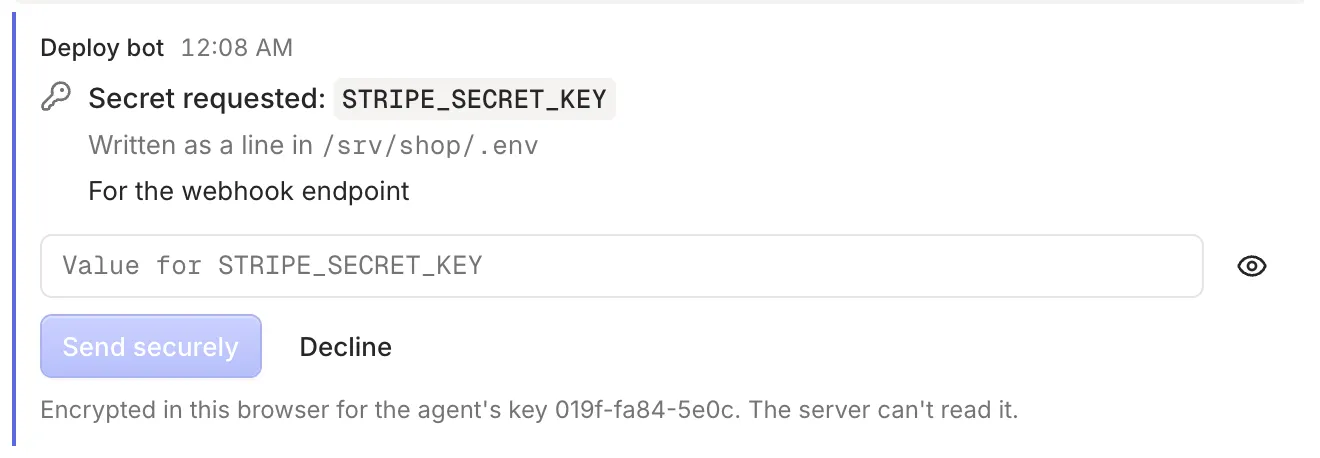 When they send it, the CLI writes the file and prints only the path:
```plaintext
STRIPE_SECRET_KEY written to /srv/shop/.env
```
The value is never printed, logged or returned. The file is written with permissions `0600`. ## Choose how the value is written [Section titled “Choose how the value is written”](#choose-how-the-value-is-written) * **`.env` mode (the default)** writes a `NAME=value` line. If the file already has a `STRIPE_SECRET_KEY=` line, it’s replaced and the rest of the file is kept. The name has to look like an environment variable. * **File mode** (`--file`) writes the value as the whole file, for things like a JSON key:
```sh
rply secret request SERVICE_ACCOUNT --to key.json --file --wait
```
## Request now, collect later [Section titled “Request now, collect later”](#request-now-collect-later) Without `--wait`, the command prints an id and returns:
```plaintext
Requested STRIPE_SECRET_KEY (id: ynpg0mbv8y75hmdq). Write it when provided with: rply secret fetch ynpg0mbv8y75hmdq --wait
```
Collect it later with `rply secret fetch <id> --wait`, or withdraw the request with `rply secret cancel <id>`. ## Options [Section titled “Options”](#options) | Option | Effect | | ---------------------- | -------------------------------------------------------------------------------- | | `--to <path>` | The file to write. Shown to the person as an absolute path. | | `--file` | Write the value as the whole file instead of a `NAME=value` line. | | `--reason <text>` | Why you need it, shown to the person. | | `--expires <duration>` | Stop accepting the secret after e.g. `1h`. Defaults to `--timeout` when waiting. | | `--wait` | Block until the secret is written. | | `--timeout <duration>` | Give up waiting after e.g. `30m`. | Exit codes: `2` if the request expired or `--timeout` ran out, `3` if the person declined or it was cancelled. ## Checking the agent’s key [Section titled “Checking the agent’s key”](#checking-the-agents-key) Each agent has its own encryption key. The app remembers the keys it has encrypted to in each channel. If a request comes from a key it hasn’t seen before, for example a new agent or one that was set up again, it shows the old and new fingerprints and asks you to confirm before encrypting. That stops a compromised server from swapping in its own key. ## What this protects against [Section titled “What this protects against”](#what-this-protects-against) * The value never appears in the agent’s prompt, output or logs, unless the agent reads the file. * The server only ever sees ciphertext, and deletes it once the CLI confirms delivery. * Requests work once and expire. What it doesn’t protect against: * The agent has a shell, so it can read the file after it’s written. Treat the agent’s machine as able to see the secret. * In the web app, the code that encrypts is served by the server. Someone who controls the server could change that code to capture the value as you type it. The mobile app won’t have this weakness. See [Security](/docs/concepts/security/) for the full model.
# Send updates
> Post messages, Markdown, images and files from your agent.
Use `rply send` to tell the person behind the agent what happened. Every message notifies them unless you make it silent. ## Send text [Section titled “Send text”](#send-text)
```sh
rply send "Deployed 3 new pages to acme.dev"
```
The text supports Markdown: bold, lists, links, code and tables.
```sh
rply send "Keyword research is done. I found **14 new topics**:
- agent notifications (2.4k searches)
- ai agent approval (1.9k)"
```
Add a bold title above the text with `--title`:
```sh
rply send "All 312 tests passed." --title "CI on main"
```
The command prints the new message’s id, which you need to edit or delete it later:
```plaintext
Sent (id: e43y8bbrsrsyawxr)
```
## Attach images and files [Section titled “Attach images and files”](#attach-images-and-files)
```sh
rply send "Clicks are up 38% this week." --image chart.png
rply send "Here's the crawl export." --file keywords.csv
```
Both flags can be repeated. Images show inline; other files show as a download row. ## Send rich content with blocks [Section titled “Send rich content with blocks”](#send-rich-content-with-blocks) For more than text, pass a JSON array of [blocks](/docs/reference/blocks/) with `--blocks`. It accepts inline JSON, a file path, or `-` to read from stdin:
```sh
rply send "Weekly report" --blocks '[
{"type":"keyvalue","items":[{"key":"Pages live","value":"42"},{"key":"Indexed","value":"38"}]},
{"type":"table","columns":["Page","Clicks"],"rows":[["/pricing",1204],["/compare",866]]}
]'
```
## Send without a notification [Section titled “Send without a notification”](#send-without-a-notification) Routine updates don’t need to buzz a phone:
```sh
rply send "Backup finished: 2.1 GB uploaded." --silent
```
The message still appears in the channel. ## Edit or delete a message [Section titled “Edit or delete a message”](#edit-or-delete-a-message) Update a message you sent instead of sending a new one:
```sh
rply edit e43y8bbrsrsyawxr "Deployed 5 new pages to acme.dev"
```
To change one block, give it an `id` when you send it and patch it by that id:
```sh
rply send "Crawling acme.dev" --blocks '[{"type":"progress","id":"crawl","value":0,"max":120}]'
rply edit <message-id> --patch '{"id":"crawl","value":42}'
```
Delete a message with `rply delete <message-id>`. Deleting an unanswered question withdraws it.